A site can be working perfectly at 9:00 a.m. and be inaccessible by lunch. A faulty plugin update, an accidental deletion, a failed payment integration, or a security incident can change a normal workday fast. Website backups are what give you a practical way back - without rebuilding pages, products, customer records, or hard-won search visibility from scratch.
For a small business, a backup is not just an IT task. It is business continuity. Your website may be where customers book services, place orders, submit inquiries, read updates, or access their accounts. If it goes down or loses recent data, the cost is more than a technical inconvenience.
What website backups should actually include
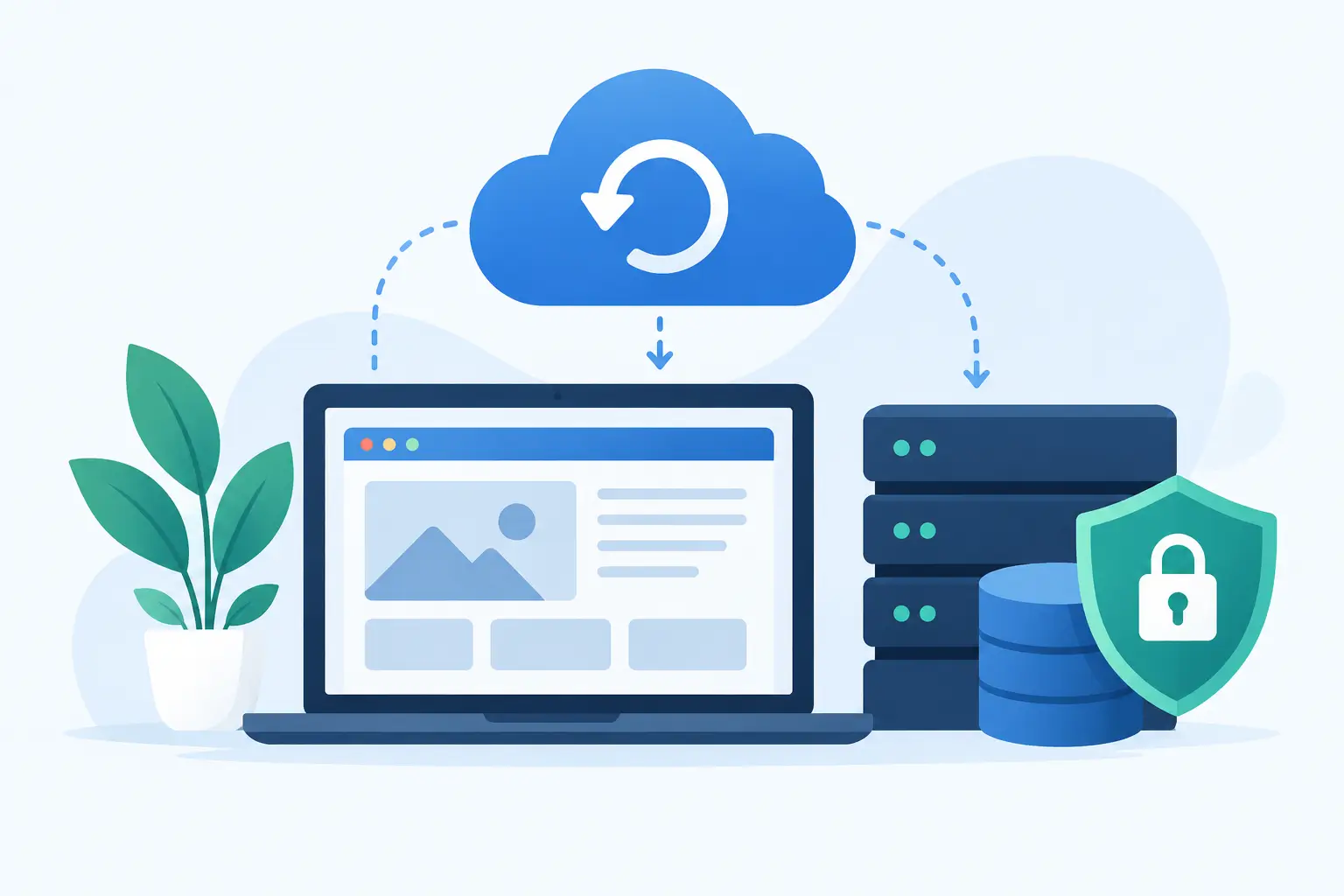
A useful backup is a restorable copy of everything needed to bring your site back to a working state. That usually means two separate pieces: your website files and your database.
Files include your WordPress core files, themes, plugins, images, documents, code, and configuration files. The database holds content, user accounts, form submissions, product details, orders, settings, and other information that changes behind the scenes. Restoring only one of these pieces can leave you with a site that looks normal but has missing content, broken features, or outdated records.
Email needs separate attention. Many hosting accounts include email, but mailbox backups are not always part of a standard website restore process. If business email lives with your hosting account, confirm whether it is included in the backup plan and how individual messages can be recovered.
For online stores, membership sites, learning platforms, and busy blogs, timing matters just as much as coverage. A nightly backup may protect most of your site, but it could still miss orders or registrations placed after the backup ran. The right schedule depends on how often your data changes.
How often should you back up your website?
There is no single schedule that fits every website. A brochure site that changes once a month has different needs than a store processing orders all day.
For many small-business and WordPress sites, daily backups provide a sensible baseline. They protect against most common problems while keeping management simple. If you publish regularly, collect leads, manage appointments, or update products, daily copies mean a mistake is usually limited to a single day of work.
More active sites may need a tighter recovery point. An ecommerce site, for example, should consider backups that run more frequently or a setup that separately protects order data. Otherwise, restoring a backup from the previous night can put you in the difficult position of reconciling orders, inventory, and payments manually.
Before major changes, create an extra on-demand backup. Do this before updating a theme, installing a plugin, changing code, moving to a new server, or importing a large batch of products. Routine backups protect you from the unexpected. A manual restore point protects you from a planned change that does not go as planned.
A backup is only as good as its restore
The most common backup mistake is assuming a backup exists because a dashboard says it does. A file archive is not the same as a proven recovery plan.
At reasonable intervals, verify that backups are completing successfully and that there are multiple restore points available. Then test the restore process in a safe environment if possible. You want to know how long a restoration takes, what data is included, and whether the restored site works as expected before an urgent situation forces the question.
A proper test checks more than the homepage. Log in to the administration area. Submit a contact form. Check images, menus, ecommerce checkout, member access, and any custom functionality your business depends on. If the site uses external services for payments, scheduling, email marketing, or inventory, confirm what information lives outside the website and what must be reconnected after a restore.
This is also where managed support makes a real difference. When something goes wrong, the issue is rarely limited to clicking a restore button. You may need help choosing the right restore point, checking DNS and caching, reviewing logs, or confirming that a plugin update caused the problem. Clear access to real technical support reduces the pressure when time matters.
Keep more than one copy in more than one place
Hosting-level daily backups are a strong first layer of protection, but relying on a single copy in a single location creates avoidable risk. A sensible approach follows the 3-2-1 principle: keep three copies of important data, on two different types of storage, with one copy stored separately from the primary hosting environment.
That does not mean every business owner needs to become a systems administrator. It means understanding who is responsible for each copy and where it lives. Your host may maintain server backups and snapshots. You might also keep periodic encrypted copies in independent cloud storage or on a secured local device. For especially important sites, your developer or agency may maintain a separate backup workflow as well.
The trade-off is convenience versus independence. Backups managed by your hosting provider are usually easier to restore because they are close to the server environment. An offsite copy provides protection if a broader account or infrastructure issue affects the primary location. The best setup often uses both.
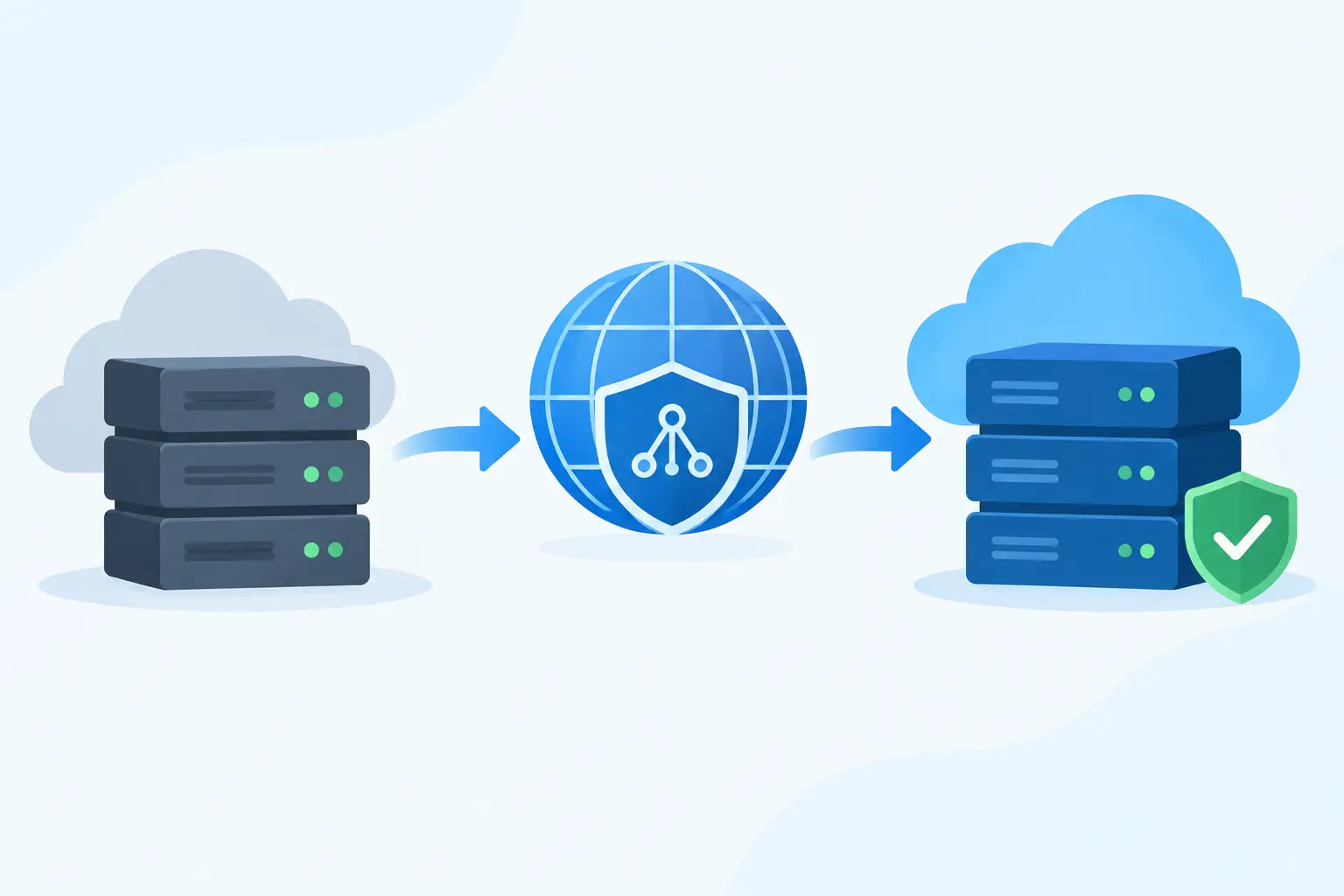
If you run a managed cloud VPS or dedicated server, snapshots can be especially helpful before server-level changes. They capture a broader state of the environment, but they should not replace application-level website backups. A server snapshot may be valuable for rolling back a configuration change, while a website backup can be the better choice when you need to recover one site, one database, or one recent content update.
Retention matters more than people expect
A backup schedule without enough history can still leave you stuck. Imagine malware quietly changing files for several weeks before anyone notices. If your system keeps only the last seven daily copies, every available backup may already contain the problem.
Look for a retention policy that gives you meaningful restore points over time. Daily backups are useful for immediate mistakes. Weekly and monthly copies help with issues discovered later. The exact window depends on your site, your compliance requirements, and how much storage you can allocate, but the goal is simple: preserve enough history to recover from both obvious and slow-moving failures.
Be careful with retention on sites that handle customer information. Backups can contain personal data, order details, and account records. They should be protected with strong access controls, encrypted where appropriate, and retained only as long as your business and legal obligations require. A backup is valuable data, not a forgotten archive.
Website backups and security work together
Backups are not a substitute for security. They are the safety net when security controls fail, a user makes a mistake, or software behaves unexpectedly. A site still needs strong passwords, multi-factor authentication where available, timely updates, trusted plugins and themes, malware monitoring, and limited administrative access.
Account isolation also matters in shared hosting environments. If one account has a problem, separation helps reduce the chance that it affects neighboring accounts. Regular monitoring and managed updates can further reduce exposure, but recovery planning should remain part of the picture.
Ransomware and malware are good examples of why this balance matters. If an attacker gains access and encrypts or alters your site, restoring from a clean backup may be the fastest route back. But restoring without identifying the original entry point can simply recreate the problem. The recovery process should include a security review, password changes, software updates, and a scan before the site returns to normal operation.
A practical backup plan for a growing site
Start by writing down what your website cannot afford to lose. For a consultant, that may be lead forms and appointment requests. For a store, it may be orders, inventory, and customer accounts. For an agency, it may be separate client sites and staging environments. That list tells you how frequently to back up and how quickly you need to recover.
Next, confirm what your hosting plan already provides. Ask how often backups run, how long they are retained, whether databases and email are included, and whether restores are self-service or handled by support. If you need more frequent copies, offsite storage, or server snapshots, add those layers before a problem exposes the gap.
Finally, assign responsibility. Someone should know where backups are located, who can request a restore, and how to reach support after hours. HillHost customers can pair daily backup protection with 24/7 human technical support, so they are not left sorting through a recovery decision alone.
A backup plan earns its value on the day nobody planned for. Set it up while your site is healthy, test it before you need it, and keep enough history to give your business a real way forward.