
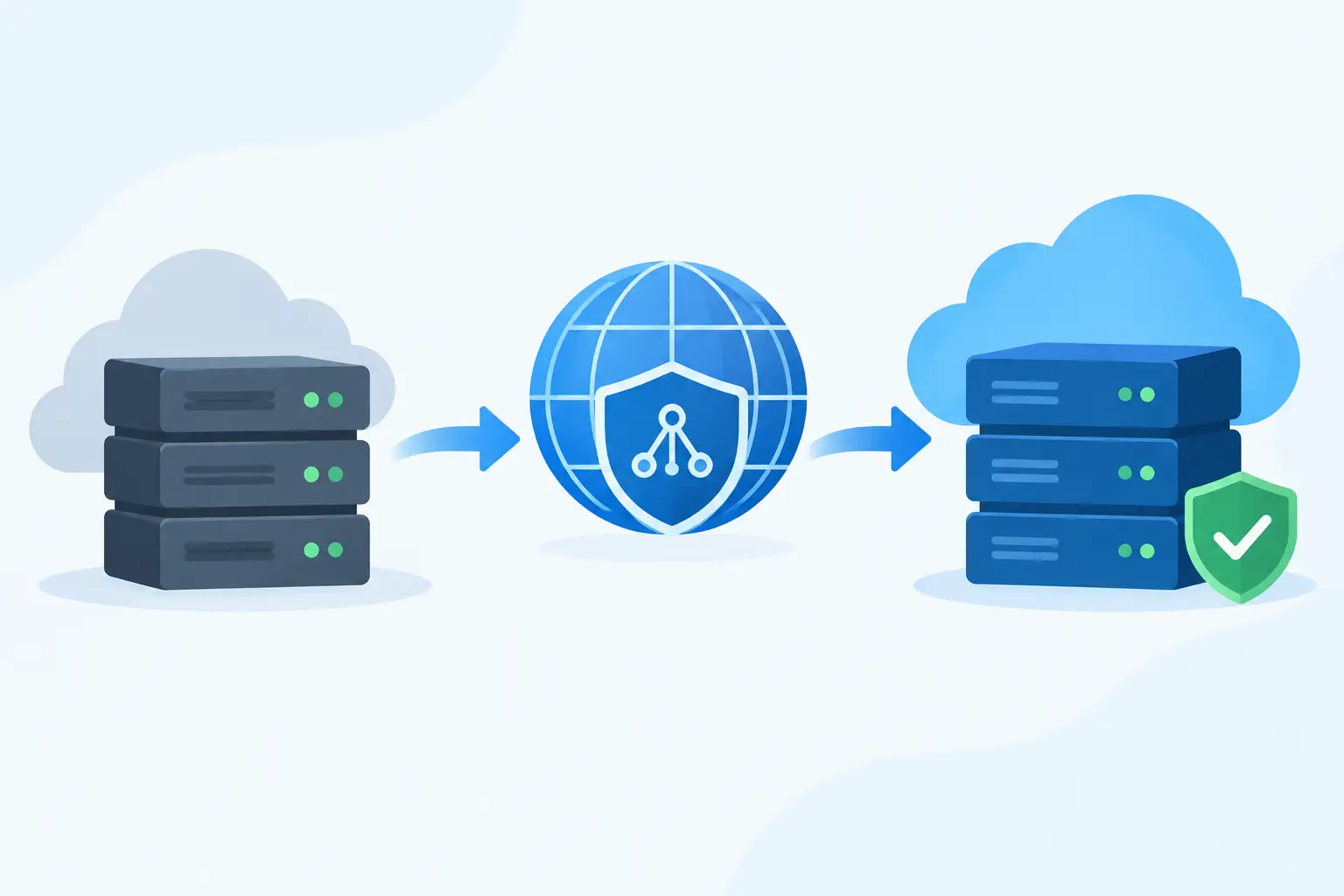
A site can be fully copied to its new server, tested, and ready to go, yet still appear unchanged to visitors. The missing step is often DNS. When you configure DNS after migration, you are telling browsers, email services, and other systems where your domain now lives. A careful change keeps the move quiet for customers instead of turning it into a day of broken pages and missing email.
DNS can feel like a technical hurdle, but the goal is simple: point the right services to the right place, verify them before making broad changes, and give the internet time to catch up. The details matter because a website and its email do not always move together.
Know What DNS Controls Before You Change It
DNS is the directory behind your domain name. When someone enters your domain in a browser, DNS records tell their device which server should receive the request. Other records direct email, confirm domain ownership, and support services such as third-party email platforms, store integrations, and security tools.
Before changing anything, identify where your DNS zone is currently managed. This may be your domain registrar, your old hosting provider, a DNS service, or your new host. The company that sells your domain is not always the company controlling its DNS records.
Look for two things: the active nameservers and the DNS zone itself. Nameservers determine which provider is authoritative for the records. The DNS zone contains the records, such as A, CNAME, MX, and TXT entries. You generally have two safe paths after a migration: keep the current DNS provider and update the needed records, or switch nameservers to the new provider and recreate the full DNS zone there.
For most small business sites, keeping DNS where it is and updating the website records creates fewer moving parts. Switching nameservers can be a good fit when you want the new host to manage DNS going forward, but it requires extra care because every active record must come with you.
Prepare to Configure DNS After Migration
The best DNS change begins before you touch a record. Save a complete copy of your current DNS zone, including records that do not appear related to the website. A forgotten TXT record can interfere with email authentication. A missed CNAME can disrupt a service your team relies on only once a month.
If you know about the migration ahead of time, reduce the TTL value on the records you plan to change 24 to 48 hours before cutover. TTL, or time to live, tells networks how long they can cache a DNS answer. A lower TTL, often 300 seconds, helps changes spread faster during the move. It does not make propagation instant, but it reduces the period where visitors may reach the old server.
You should also confirm the destination details supplied by your new host. For a standard website migration, this is usually a new server IP address for an A record. Some platforms may provide a hostname for a CNAME record instead. Do not guess or copy an old IP from a welcome email. Use the current destination information from the hosting account or migration team.
Before DNS changes, test the migrated site on the new server if possible. Your host can often provide a temporary URL or another way to preview the site. Check the homepage, contact forms, login areas, shopping cart, images, and any integrations that matter to daily operations. DNS should be the final handoff, not the first time you discover that a form is sending nowhere.
Update the Records That Move Your Website
For many sites, the website itself is controlled by the root domain record and the www record. The root domain is often shown as @ in a DNS manager. It commonly uses an A record that points to the new server IP address. The www version may use a CNAME that points to the root domain, though some setups use a separate A record.
Update only the entries your new host has instructed you to change. Leave email records, verification records, and unrelated service records in place unless the migration includes those services too. This is where otherwise successful moves go wrong: someone replaces an entire DNS zone when only the website’s A record needed an update.
A typical website-only update may include the following:
- The A record for @, pointing to the new hosting server IP address.
- The www record, either as a CNAME to @ or an A record matching the new server.
- An AAAA record, if your new hosting service provides an IPv6 address and you use IPv6.
- A CNAME or subdomain record only when that subdomain has also moved.
Be especially cautious with wildcard records, shown as an asterisk. A wildcard can route any undefined subdomain to a server. If your old setup used one, decide whether it should point to the new environment before changing it.
Protect Email While You Move the Site
Email is the most common DNS casualty after a website migration. If your business uses Google Workspace, Microsoft 365, Zoho Mail, or another external email provider, its MX records should normally remain exactly as they are. The same applies to TXT records used for SPF, DKIM, and DMARC.
MX records tell other mail servers where to deliver messages. SPF helps receiving servers check whether a sender is authorized. DKIM adds a signed verification record, and DMARC tells receiving providers how to handle messages that fail authentication. Removing or overwriting these records can lead to delayed delivery, spam placement, or messages that never arrive.
If email is moving to the new host as part of the project, the process is different. You will need the new MX settings and may need to recreate mailbox accounts before changing DNS. In that case, schedule the cutover carefully and make sure users know when to update their email apps. Website DNS and email DNS can be changed separately, which is often the safer approach.
Verify the Change Without Guesswork
After you save the updated records, check the site from more than one network. Your office Wi-Fi may still have the old address cached while a mobile connection sees the new site. Open the domain in a private browser window, test the www and non-www versions, and submit a form if your site uses one.
Propagation often begins within minutes when TTLs are low, but full global visibility can take up to 24 to 48 hours. During that period, some visitors may still reach the old server. That is why it helps to leave the old hosting account active for a short overlap rather than canceling it immediately.
If you changed nameservers, allow extra time and verify more than just the website. Check email delivery in both directions, key subdomains, and any third-party services that use DNS verification. A nameserver switch replaces the source of truth for the entire domain, so it deserves a broader review.
Common Problems After a DNS Cutover
A browser warning after migration is often an SSL issue rather than a DNS failure. Once the domain resolves to the new server, the new host needs to issue or install a certificate for that domain. If the site works on one address but shows a certificate mismatch, give the certificate process time to complete and confirm the domain points only to the intended server.
A redirect loop can happen when the old server, a content delivery network, and the new site have conflicting HTTPS or domain redirect rules. If the site keeps bouncing between addresses or versions of the domain, review redirects in the website application, hosting control panel, and any proxy service.
If the site loads but looks incomplete, static files may still be cached or a plugin may contain the old domain or server path. If email stops working, compare the current MX and TXT records against the DNS backup you made before the change. Resist the urge to delete records until you understand what they do.
When a Managed DNS Check Is Worth It
A simple brochure site with one domain can usually be updated in a few minutes. A busy WordPress store, agency account, membership site, or business with external email and several subdomains deserves a more deliberate review. The trade-off is small: a few extra minutes of verification can prevent hours of diagnosing a lost lead form or interrupted email.
At HillHost, migration support is designed to continue past the file transfer. If you are unsure which records should change, getting a human set of eyes on the DNS zone is often the fastest path to a clean cutover.
The right DNS change should be almost invisible. Your visitors find the same domain, your email keeps moving, and your site simply has a faster, safer home behind the scenes.