An email migration can look simple until a customer replies to an old thread, a salesperson loses calendar access, or a missed DNS setting stops new messages from arriving. To migrate business email safely, treat it as a continuity project, not just a mailbox transfer. The goal is not merely to move old messages. It is to keep your team reachable, protect business records, and give everyone a clear plan for the change.
For a small business, even a few hours of confusion can mean missed leads, delayed invoices, and a lot of unnecessary stress. A careful migration limits that risk by separating preparation, testing, cutover, and follow-up.
Start with an email migration inventory
Before choosing a migration date, document what you actually use. Many businesses discover that email is connected to more systems than expected: website contact forms, accounting software, appointment reminders, CRM notifications, scanners, shared inboxes, and mobile devices.
Create a record of every active mailbox, alias, forwarding rule, mailing list, shared address, and former employee account that still receives mail. Include service accounts such as billing@, support@, or notifications@. These addresses may not belong to a person, but they often carry important automated messages.
Also confirm where your domain's DNS is managed. Your email provider may be changing, while your domain and DNS remain with a registrar or hosting account. Knowing who controls DNS prevents a common last-minute problem: the team is ready to switch mail, but nobody has access to update the records.
A useful pre-migration checklist includes:
- Active email accounts, shared mailboxes, aliases, and distribution lists
- Mailbox sizes and the age range of messages that must be retained
- Connected devices, email apps, calendars, contacts, and shared folders
- Website forms and third-party tools that send or receive email
- Current DNS access, including MX, SPF, DKIM, and DMARC records
This inventory gives you a realistic scope. It also helps determine whether a basic mailbox move is enough or whether you need hands-on help with calendars, archives, permissions, and multiple domains.
Back up first, even if the provider offers migration tools
Migration tools are useful, but they are not a replacement for a backup. Before any changes, export or preserve a copy of critical email. For many small teams, this means retaining an archive of mailboxes and saving important contacts, calendars, and shared files separately.
The right backup approach depends on your current platform and retention needs. A business with years of client correspondence may need a full archive. A newer company may only need current mailboxes and key folders. If your industry has compliance or recordkeeping requirements, verify how long messages must be retained before choosing what to move or archive.
Backups also protect against human error. Someone may delete a message during cleanup, choose the wrong migration scope, or later realize that a former mailbox contains a contract trail. A recoverable copy gives you options when the schedule gets tight.
Lower DNS TTL before the cutover
DNS records tell the internet where to deliver your email. The most important are MX records, but SPF, DKIM, and DMARC records matter too. Together, they support deliverability and help receiving servers recognize that your messages are legitimate.
Two or three days before the planned switch, lower the TTL, or time to live, on the relevant DNS records. TTL tells other systems how long they can cache an older record. Lowering it ahead of time helps changes propagate more quickly when you update the mail routing.
Do not remove old records until you understand what each one does. An SPF record, for example, may authorize your website, newsletter platform, or invoicing tool to send mail from your domain. Replacing it carelessly can cause legitimate messages to fail authentication or land in spam.
If DNS feels unfamiliar, this is a sensible point to ask for help. The details are manageable, but a single missing character in a record can affect delivery. A provider with real technical support can review the planned records before the switch rather than leaving you to decode error messages alone.
Move mail in stages, then test the new environment
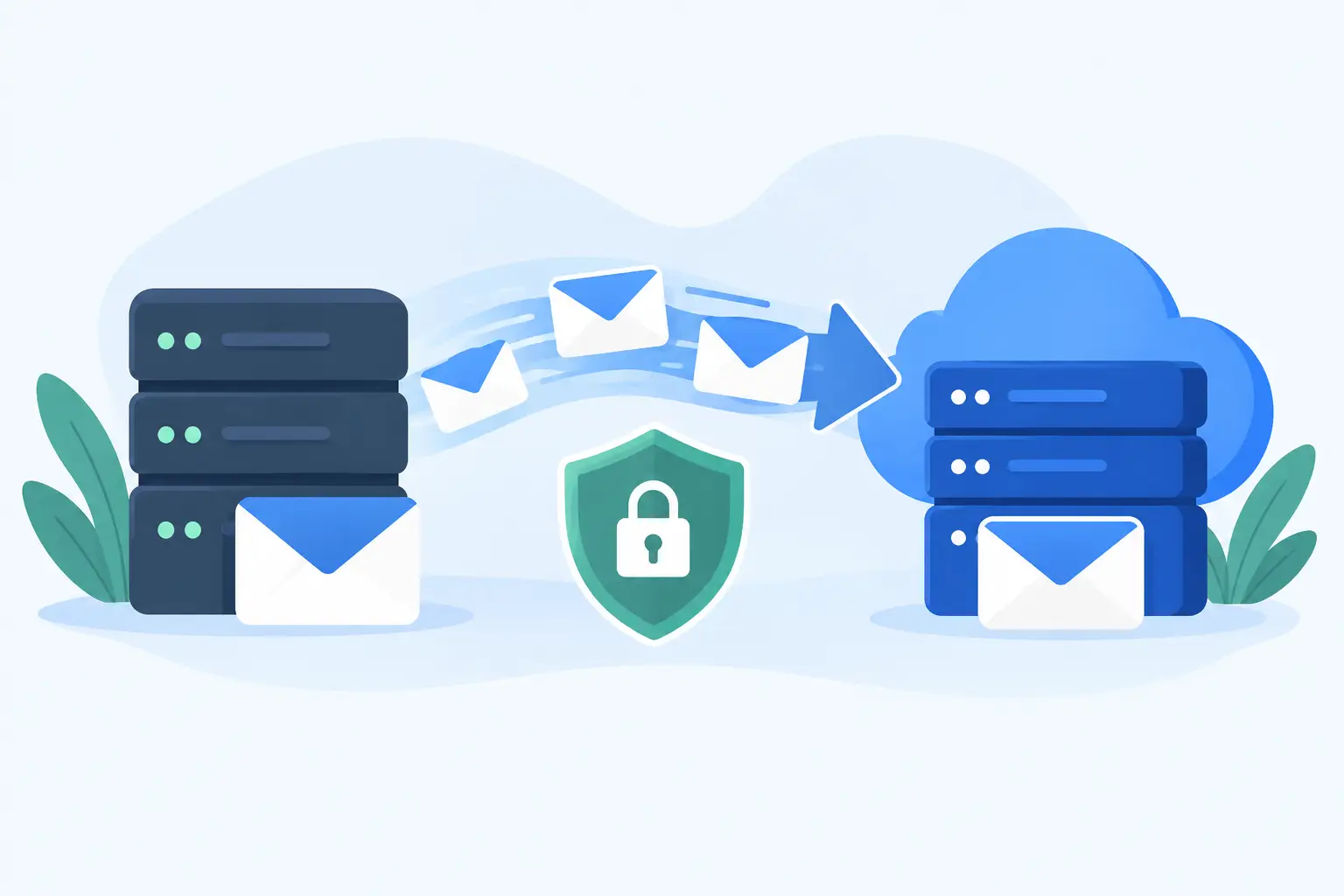
The safest email migrations use an initial sync before the final cutover. Existing mail is copied to the new service while users continue working on the old one. Near the switch, a final sync captures the messages that arrived in the meantime.
Start with a pilot group when possible. Choose a few users who can test without putting the whole business at risk. They should confirm that they can sign in from a browser and their usual email app, send and receive messages internally and externally, access calendars and contacts, and use any shared mailbox they depend on.
Test from outside your organization as well. Send messages from a personal email address or another domain to confirm inbound delivery. Then send from the new business mailbox to several major providers. Check whether messages arrive promptly and whether they are marked as spam.
This testing stage often reveals issues that a migration dashboard will not show. An iPhone may still be connected to the old server. A shared mailbox may have copied but lost delegated access. A website form may be using outdated SMTP credentials. Finding these problems before the DNS cutover is much easier than explaining them while customers are waiting for replies.
Plan the cutover around your business, not just a clock
There is no universal best time to change business email. A local service business may prefer a quiet evening. An ecommerce team may avoid weekends and promotions. A distributed team may need a scheduled window that accounts for several time zones.
Choose a period when the people responsible for technical decisions are available. Avoid making the switch before a holiday, product launch, payroll deadline, or other event where missed messages create extra pressure. Keep the old service active for a short overlap period if your provider and budget allow it. That overlap can provide a useful safety net while DNS changes settle.
Tell employees exactly what to expect. A short message should cover the change window, sign-in instructions, any new password or multi-factor authentication steps, and who to contact if their mail does not work. Keep instructions plain. Your team does not need a lesson in MX records. They need to know whether they can keep using their current app and what to do if they cannot send a message.
Protect security during and after the move
Email accounts are a frequent target for phishing and password attacks, especially during migrations when people expect account notices. Use the move as an opportunity to tighten account security.
Require strong, unique passwords and enable multi-factor authentication for every mailbox, starting with administrators. Review who has access to shared addresses and remove former employees or vendors who no longer need access. If your new provider supports separate administrator roles, avoid sharing one master login across the business.
After the migration, verify that SPF, DKIM, and DMARC are configured correctly. These records will not stop every fraudulent message, but they materially improve your domain's ability to authenticate mail. Monitor the first several days for delivery failures, unexpected forwarding rules, suspicious login alerts, and messages sent from systems that were not included in your DNS updates.
Watch the details for the first week
A migration is not finished when messages begin arriving at the new mailboxes. The first week is when small gaps become visible. Ask staff to report missing folders, calendar issues, app problems, or messages that appear to be delayed. Check the main business addresses yourself, especially sales, support, and billing.
Review website forms, transactional email, and automated alerts. If you run a WordPress site, test contact forms and password-reset messages. If you use a CRM or booking tool, confirm that notifications still reach the intended inbox and that replies come from the right address.
Keep a simple issue log rather than handling every report in a scattered chat thread. Note the affected user, device, symptom, and resolution. Patterns matter. Three people unable to send from mobile devices may point to one setup issue, not three separate problems.
For businesses moving websites and email at the same time, avoid combining every change into one unexplained event. Hosting, DNS, and mail can interact, but each should have a documented plan and a clear rollback option. HillHost's hands-on migration approach is built around that practical idea: protect continuity first, then help customers settle into the new setup with real support available.
A safe email migration is less about finding a magic zero-risk button and more about giving your business room to verify each step. With a backup, a staged move, careful DNS updates, and someone accountable during the change, your team can keep answering customers while the infrastructure changes behind the scenes.