A customer says they never received your estimate. A password-reset email lands in spam. A scammer sends messages that appear to come from your domain. These are different problems, but a proper email authentication setup helps prevent all three. It gives receiving mail servers a way to verify that your legitimate email is legitimate before deciding where it belongs.
For a small business, this is not just an IT task to postpone. Email supports sales, support, account security, invoicing, newsletters, and everyday communication. When your domain is authenticated correctly, your messages are more likely to reach the inbox, and your brand is harder for bad actors to imitate.
What email authentication actually does
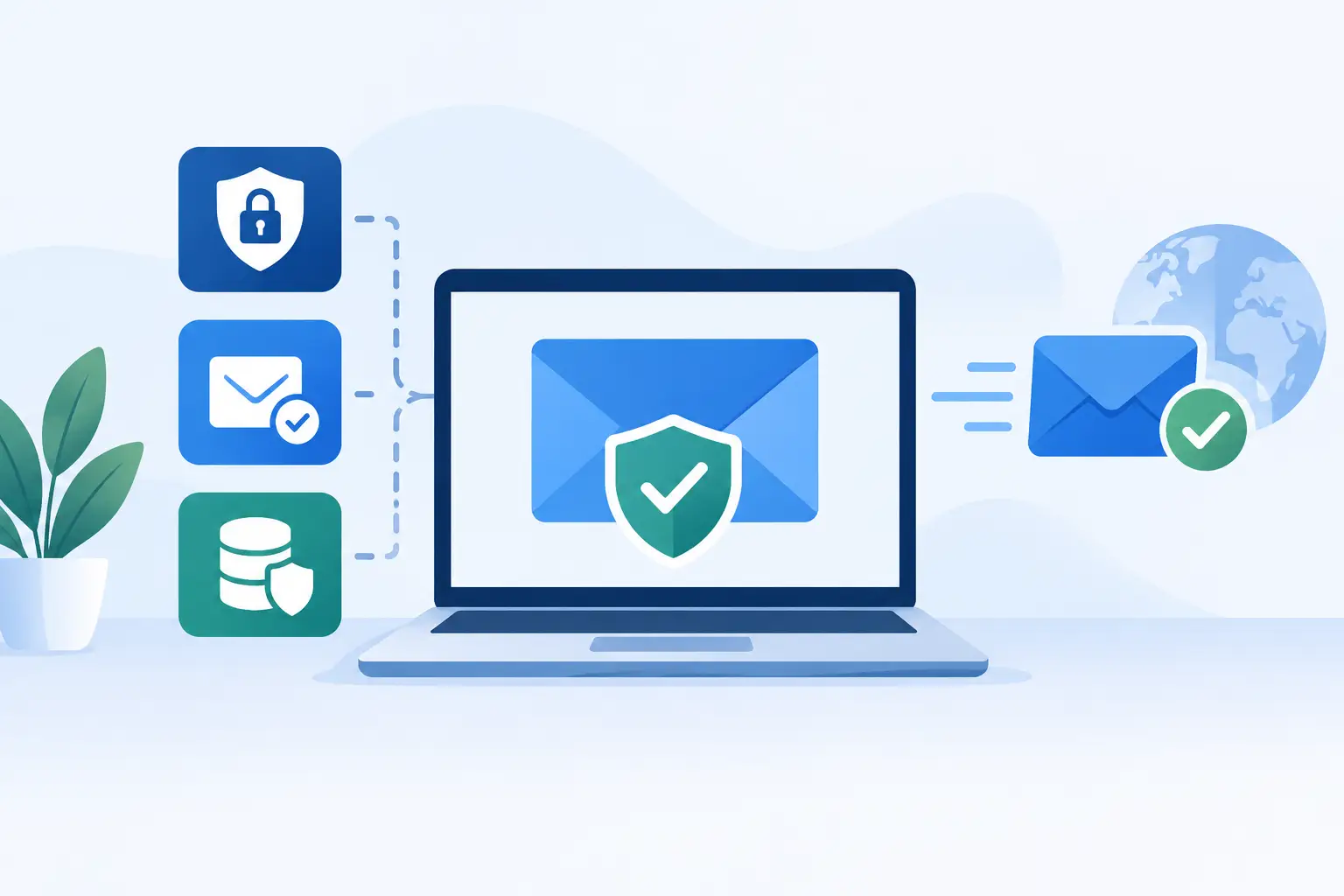
Email authentication uses DNS records to tell services such as Gmail, Outlook, Yahoo, and corporate mail systems which servers can send mail for your domain. It relies on three standards: SPF, DKIM, and DMARC.
Each handles a different part of the trust decision. SPF identifies permitted sending servers. DKIM adds a cryptographic signature to outgoing messages. DMARC tells receiving servers what to do when SPF or DKIM checks fail, while also providing reports about attempted use of your domain.
These records do not guarantee inbox placement. A message can still be filtered because of poor list quality, spam complaints, suspicious content, or an abrupt jump in sending volume. But without authentication, even well-written, wanted email starts at a disadvantage.
Email authentication setup starts with your senders
Before adding records, make a complete list of every service that sends email using your domain. This step is where many otherwise careful setups go wrong.
Your list may include mailbox providers such as Microsoft 365 or Google Workspace, your website contact form, WordPress transactional email, your hosting server, an ecommerce platform, a CRM, a billing system, a newsletter tool, and an appointment service. A domain can use several of these at once.
Do not assume that changing your email provider covers everything. For example, an agency may send campaign email through a marketing platform while password resets come from WordPress and invoices come from accounting software. Each source needs to be considered in the authentication plan.
Also identify the domain used in the visible From address, the domain used for return-path or bounce processing, and any subdomains used for marketing or transactional messages. Separating these streams can be useful as your business grows. A newsletter sent from a dedicated subdomain, for example, can help protect the reputation of the primary domain used for customer conversations.
Set up SPF carefully
An SPF record is a TXT record in DNS. It states which servers and platforms are allowed to send messages on behalf of a domain. A basic record may authorize your mailbox provider and hosting server, while a more involved record can include several approved services.
The most common SPF mistake is creating more than one SPF record. Your domain should have one SPF TXT record. If several services provide separate SPF instructions, their required mechanisms need to be combined into a single record rather than published as multiple competing records.
A second concern is the SPF DNS lookup limit. SPF processing permits only a limited number of DNS lookups, and records with too many included services can fail validation. This is one reason to remove old providers instead of leaving every service you have ever tested in place.
Your SPF policy should end with an appropriate qualifier. A soft fail, shown as ~all, is often used during transition periods. A hard fail, shown as -all, is stricter and says that servers not listed are not authorized. The right choice depends on whether you are confident that your sender inventory is complete. Do not move to a strict policy simply because it looks more secure if a forgotten application is still sending essential mail.
Enable DKIM for every platform that can sign
DKIM works differently. Your email platform signs each outgoing message with a private key, while a public key is published in DNS. Receiving systems use that public key to confirm that the message was signed by an authorized sender and was not altered in transit.
Most reputable mailbox, ecommerce, and email marketing platforms provide DKIM setup instructions in their administration area. They will typically ask you to create one or more CNAME or TXT records. Copy these values exactly. A missing character, added quote, or incorrect host name can stop the signature from validating.
DKIM is especially valuable because it can remain aligned with the domain shown to recipients even when the technical return path differs. That alignment becomes important for DMARC.
If you use a website form or WordPress plugin to send transactional messages, avoid relying on a generic server mail function when possible. Configure it to send through an authenticated mail service or SMTP provider that supports DKIM. This improves reliability and makes troubleshooting much easier than trying to trace mail generated directly by a web server.
Add DMARC in stages, not all at once
DMARC is the policy layer. It checks whether SPF or DKIM passes and aligns with the domain in the visible From address. It also tells receiving servers whether to take no special action, send unauthenticated messages to spam, or reject them.
A sensible DMARC rollout begins with monitoring. Publish a DMARC record using p=none and a reporting address you can access. This lets you collect feedback without instructing recipients to block mail. The reports can be technical, but they reveal which services are sending as your domain and whether they are passing authentication.
After reviewing reports and fixing legitimate sources that fail, you can move gradually to p=quarantine. This asks receiving systems to treat failed mail with caution, often placing it in spam. When your authorized sources are consistently passing, p=reject provides the strongest protection against direct spoofing.
There is no universal timeline. A simple business domain with one mailbox provider and one website sender may move through the stages quickly. A larger organization with legacy systems, multiple agencies, regional storefronts, and several SaaS tools should allow more time for monitoring. The goal is not to reach reject mode fastest. The goal is to reach it without interrupting valid customer email.
Test the records and watch real-world delivery
Publishing DNS records is not the finish line. DNS changes can take time to appear, and records can look correct while a sending platform is still using an outdated configuration.
Send test messages to accounts at major providers and inspect the message headers for SPF, DKIM, and DMARC results. Look for pass results and confirm that the authenticated domain aligns with the From address customers see. If one provider passes and another fails, compare the sending path. The source may be different than expected.
Continue reviewing DMARC reports after the initial rollout. Add a new service to the review process whenever your business adopts a new CRM, marketing tool, help desk, form builder, or ecommerce system. Email authentication is ongoing domain maintenance, not a one-time DNS project.
Common problems that cause avoidable failures
A few issues appear repeatedly. Multiple SPF records can invalidate SPF entirely. An old vendor left in SPF can consume precious lookup capacity. A DKIM record may be published under the wrong selector, or a provider may not have DKIM enabled even though its DNS record exists.
DMARC failures also occur when the visible From address uses your main domain but a third-party platform signs with its own unrelated domain. In that case, the platform may need a custom sending domain configured for alignment.
Website mail is another frequent trouble spot. Contact forms that send from a visitor's email address can trigger spoofing protections because your site is trying to send as a domain it does not control. Configure forms to send from an address on your own domain and place the visitor's address in Reply-To instead.
If DNS records, website mail, and multiple vendor dashboards feel like too much to manage alone, use support before changing records at random. HillHost customers can get practical help identifying where DNS and hosting responsibilities meet, especially when website-generated email is part of the picture.
Protect the trust your domain has earned
Authentication works best alongside good sending habits. Send only to people who expect your messages, keep mailing lists clean, make unsubscribe options clear, and avoid sudden volume spikes from a new system. Use SSL for website forms, secure mailbox accounts with strong passwords and multi-factor authentication, and remove access for former staff or unused applications.
Your domain name appears on every customer email you send. Treat its sending reputation like any other business asset: keep the records accurate, review changes before they cause trouble, and give legitimate messages the proof they need to be trusted.