A plugin update should not be a gamble with your homepage, contact forms, checkout, or search rankings. When you set up WordPress staging, you create a private working copy of your site where changes can be tested before they affect the version customers and visitors use. It is one of the simplest ways to protect a business website while still keeping it current.
A staging site is not just for developers. If you manage a brochure site, blog, portfolio, membership site, or online store, it gives you room to make decisions carefully. You can update WordPress, try a new plugin, change a page builder template, or adjust site code without hoping everything works out after you click Save.
What a WordPress staging site actually does
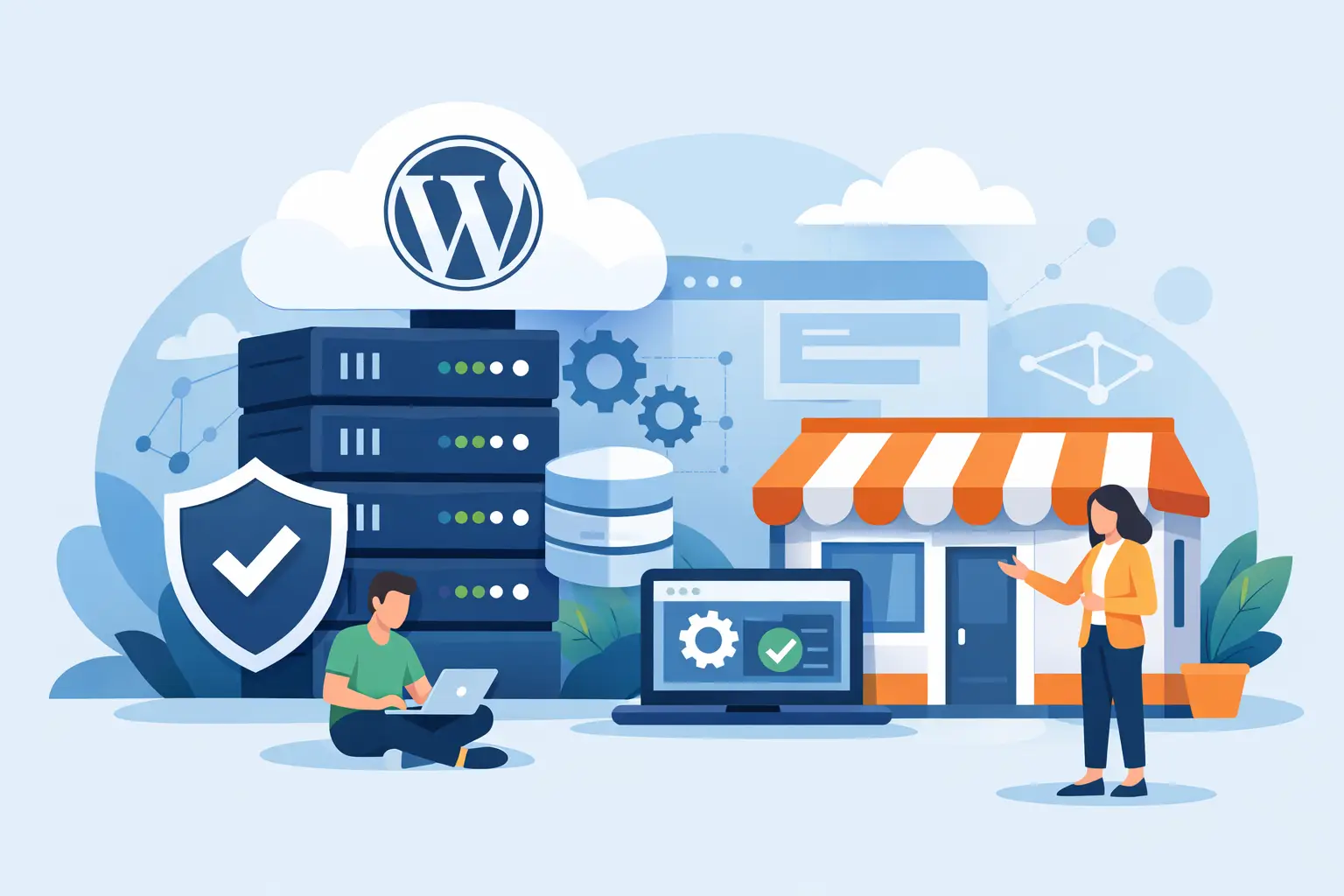
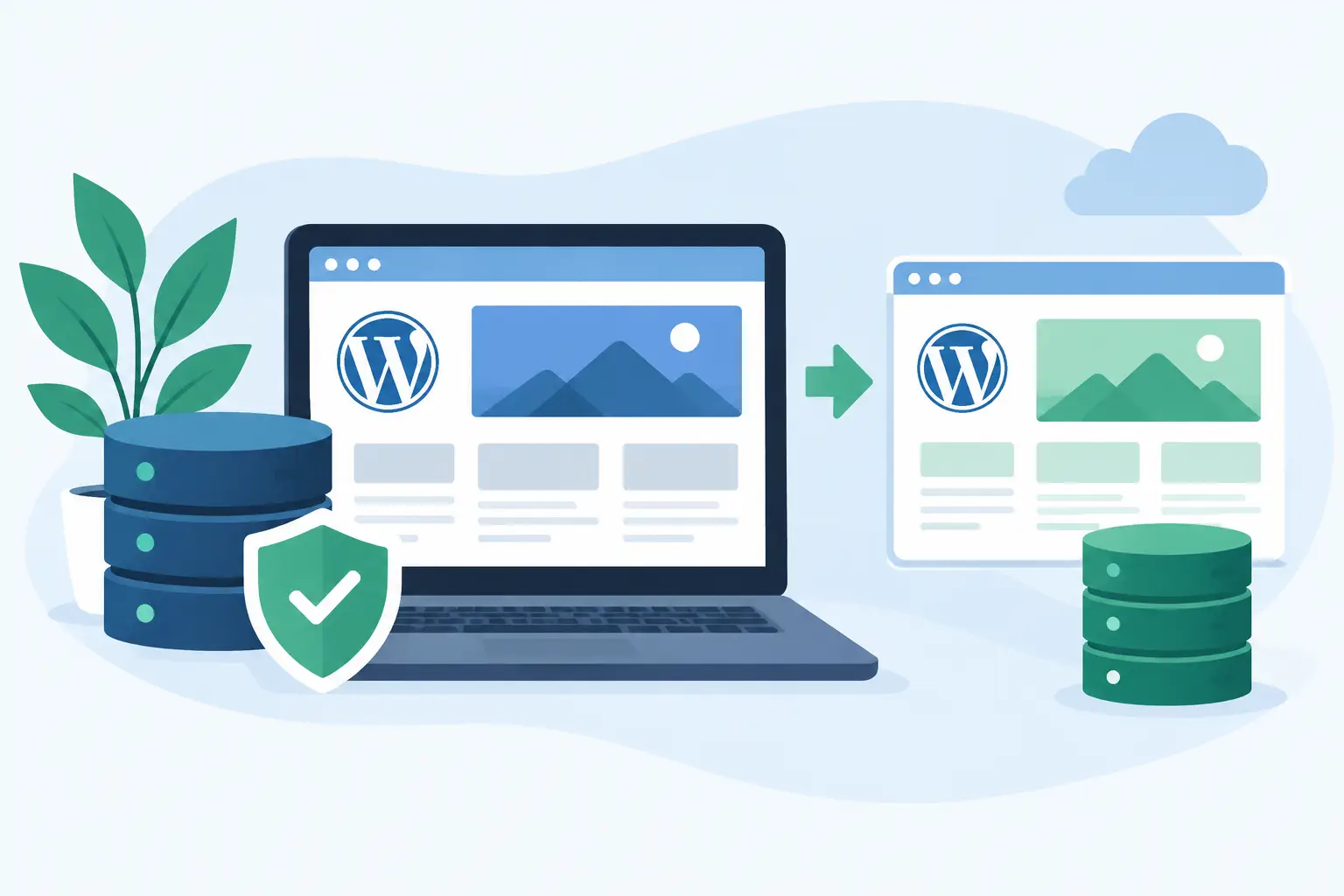
A staging environment is a copy of your live WordPress site placed in a separate, non-public location. It should include your WordPress files, theme, plugins, media library, and database. In practical terms, it looks and behaves like your site, but changes made there do not appear on the live site unless you intentionally publish or copy them over.
That separation matters because WordPress changes often interact in unexpected ways. A plugin may conflict with your theme. A PHP update may reveal outdated code. A caching setting may affect forms or logged-in users differently than you expected. Staging gives you a safe place to find those problems.
It does have limits. A staging copy is only as current as the moment it was created. For a blog or portfolio, that is usually fine. For an active WooCommerce store, booking site, forum, or membership site, the live database may change every minute through orders, customer accounts, comments, and reservations. Copying a staging database back to production without care can overwrite real customer activity.
Choose the right way to set up WordPress staging
The best method depends on your hosting setup, the complexity of your site, and how often you make changes. For most site owners, a host-provided staging tool is the clearest option. It creates the copy, handles the basic path or subdomain setup, and typically offers a controlled way to push tested changes live.
A WordPress staging plugin can work when your hosting plan does not include a staging feature. These tools often create the clone inside your existing hosting account. They are useful for simpler sites, but confirm that your account has enough disk space and that the plugin can handle your site size. Large media libraries and busy databases can make a plugin-based copy slow or incomplete.
Manual staging is better suited to developers and technically confident teams. It involves creating a separate database, copying files, updating configuration details, changing WordPress URLs, and protecting the environment from public access. It offers more control, but it also creates more places for a small mistake to become a problem. If you do not regularly work with databases and server files, use a managed option or ask your host for help.
For many small businesses, the lowest-risk choice is staging provided alongside managed WordPress hosting. A provider such as HillHost can also help clarify how backups, staging copies, and production changes fit your specific account rather than leaving you to sort it out alone.
Before you create the copy, protect the live site
Staging is a safety layer, not a replacement for backups. Start by confirming that you have a recent, restorable backup of the live website. Daily backups are valuable, but check the retention period and make sure you know how restoration works before you need it.
Next, take a quick inventory of the site. Write down the WordPress version, active theme, active plugins, any custom code snippets, and services connected to the site. Pay special attention to payment gateways, email delivery tools, analytics, CRM forms, security plugins, caching, and external APIs. These are the pieces most likely to act differently on a cloned site.
If your site handles personal information, staging needs the same common-sense security as production. Keep it private with password protection or access controls. Do not use real customer data in a broadly accessible test environment. Disable public indexing so search engines do not find a duplicate version of your pages.
How to set up WordPress staging through your host
Host dashboards vary, but the process generally follows the same pattern.
1. Create a fresh staging copy
Open your hosting control panel and look for a staging, WordPress tools, or site management section. Select the live WordPress installation you want to copy, then choose Create Staging or a similar option.
Choose a clear label, especially if you manage multiple sites or projects. A name such as `client-site-staging` is more useful than a vague test folder. Let the process complete fully before logging in. Depending on site size, copying files and the database can take a few minutes.
Once it is ready, verify that the staging URL is separate from the public site. Log in using the staging WordPress admin address, not the live one. It is easy to make a change in the wrong dashboard when both look identical.
2. Keep staging out of search results and customer workflows
In the staging dashboard, go to Settings, then Reading, and enable the option that discourages search engines from indexing the site. This is helpful, but do not rely on it as the only protection. Password protection at the hosting level is stronger for a site that contains private content.
Also review outgoing email behavior. You do not want a test order, password reset, contact form, or automated notification to land in a real customer's inbox. Depending on your setup, disable email delivery on staging, route messages to an internal address, or use a safe testing mailbox.
For stores and membership sites, switch payment gateways to sandbox or test mode if you need to test checkout. Never process real card payments on a staging copy. In the same way, avoid connecting staging to live shipping, inventory, fulfillment, or customer automation systems unless you understand exactly what data may be sent.
3. Make one focused set of changes
Staging works best when each test has a clear purpose. Instead of updating every plugin, replacing your theme, and redesigning three pages at once, group related work together. For example, test a WordPress core update and plugin updates first. Handle a major theme or page builder change as a separate project.
This makes troubleshooting much faster. If something breaks after a small, documented set of changes, you have a much better idea where to look. Take notes about what you changed, including version numbers and settings adjusted along the way.
4. Test like a visitor, not just an administrator
Do not stop after the dashboard looks normal. Open the staging site in a private browser window where you are not logged in. Check the homepage, key service pages, navigation, mobile layout, contact forms, search, and any download or booking flow.
For an ecommerce site, place a test order and verify product variations, taxes, shipping, confirmation emails, coupons, and account creation. For a lead-generation site, submit every important form and make sure the message reaches the correct destination. Test pages in more than one browser if a design or JavaScript change is involved.
Watch for quieter problems too: slow pages, missing images, mixed-content warnings, broken redirects, strange caching behavior, and admin errors. Check your error logs if your hosting panel makes them available. A site can look fine at first glance while an important background process is failing.
5. Push changes live with the right scope
When testing is complete, decide what actually needs to move to production. Some staging tools can push files, databases, or both. That choice is especially important for active sites.
If you only changed a theme file or custom CSS, a file-only deployment may be appropriate. If you built new pages, changed settings, or updated content, you may need database changes too. But on a busy store or membership site, pushing the whole staging database can replace live orders, new users, comments, form entries, or other recent activity.
For dynamic sites, schedule deployment during a quieter window and put the site in maintenance mode if needed. Take another fresh production backup immediately before publishing. Then either deploy only the necessary files and settings or ask a qualified developer or hosting support team to help merge changes safely.
After publishing, clear relevant caches and test the live site again. Check the same visitor-facing paths you tested on staging, plus any critical transaction or contact process. Keep an eye on the site for the next few hours, particularly after major plugin, theme, or PHP changes.
Common staging mistakes to avoid
The most common mistake is treating staging as a one-time project. Your live site changes over time, so a months-old staging copy is a poor place to test a current update. Create a fresh copy before meaningful work whenever possible.
Another mistake is assuming a successful push means the job is finished. CDN caches, browser caches, server caching, and third-party services can make production behave differently. Clear caches deliberately and verify the live result while logged out.
Finally, do not forget to remove staging sites you no longer need. Old copies consume storage, can contain outdated plugins, and may hold information that should not remain available. Keep the environments that support active work and clean up the rest.
A good staging workflow gives you something more useful than a backup plan: the confidence to improve your website without putting the version your customers rely on at unnecessary risk.